
Choose your device
Open the section for the operating system on the phone you are holding. The first picture identifies the store, the second shows the app listing and the last two distinguish the disconnected and connected states. Read the words beside the switch as well as its colour. Store layouts and button positions can vary with the language and version installed on the phone.
Keep the browser page available
If you leave your browser for the store, keep the original page open so you can return after reviewing the listing. Look for the app name and publisher on the listing itself. A screenshot illustrates the sequence but cannot tell you whether a particular listing is right for your device. Read any system request to add a connection profile before choosing whether to allow it.
Check the connection separately
After changing a connection setting, return to the tab you were using and reload it once. Note whether the browser reaches the site, whether only the images are missing, or whether a separate destination fails after you leave the site. Those are different observations. If you installed the connection app just for this check, use its switch to disconnect when you finish and confirm the status shown on the phone.
iPhone connection steps
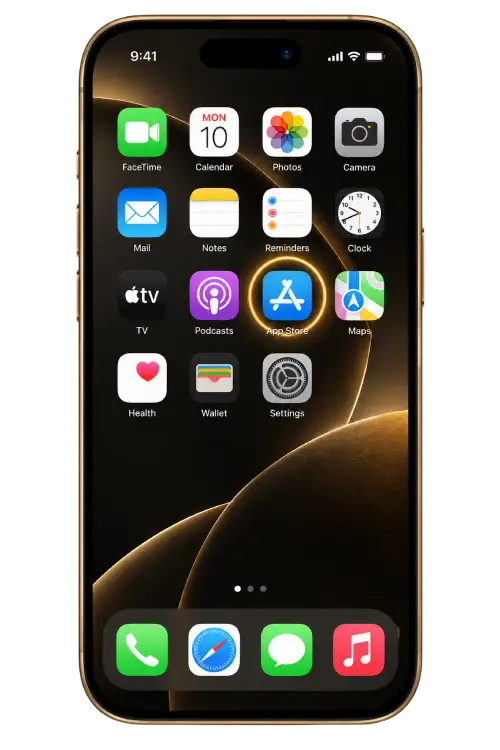
Open App Store on your phone.
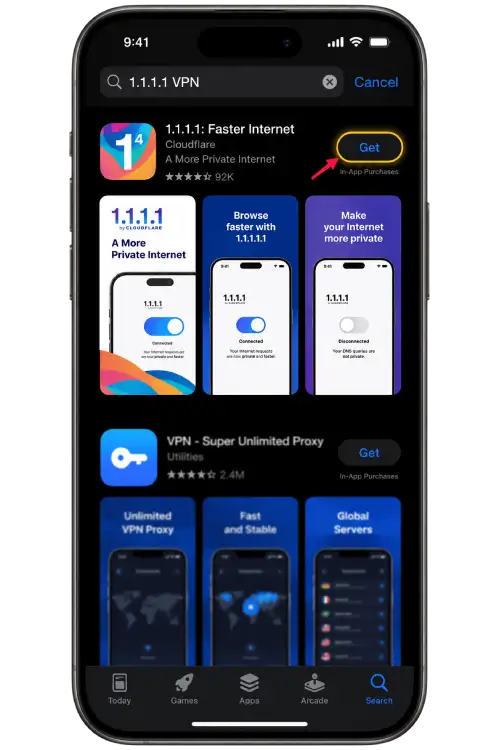
Find the 1.1.1.1 listing from Cloudflare and review it.
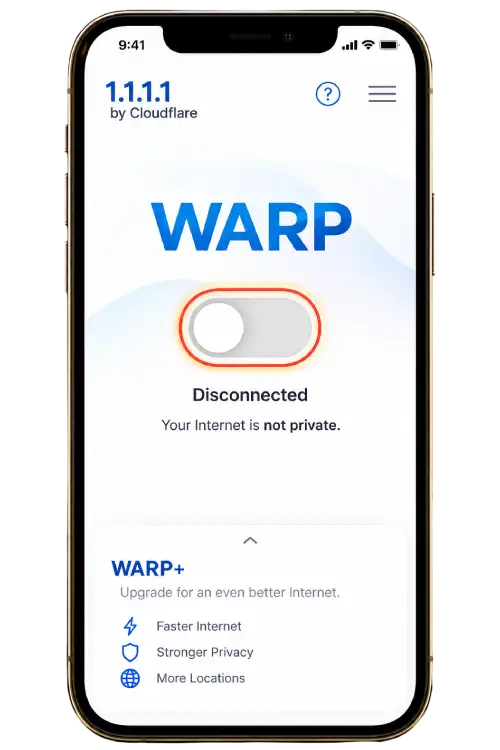
Open the app and review the connection switch.
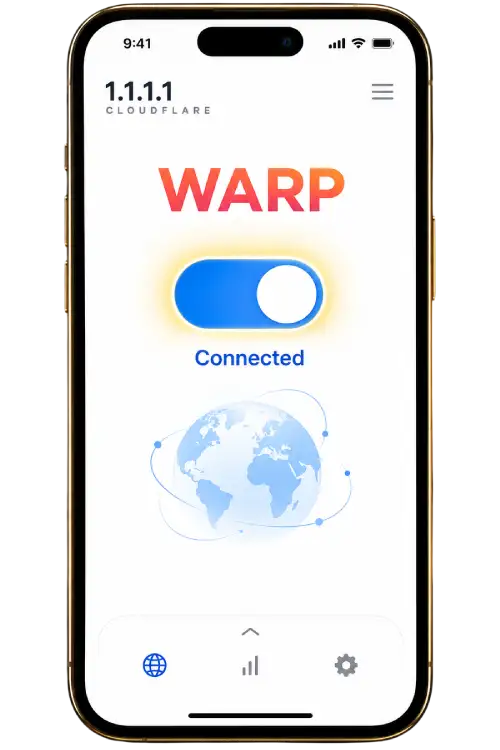
Turn on the connection and check that the app shows Connected.
Android connection steps
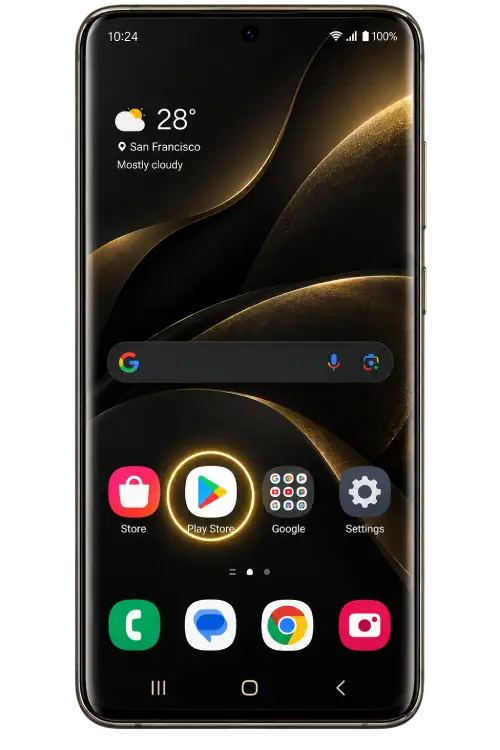
Open Google Play on your phone.
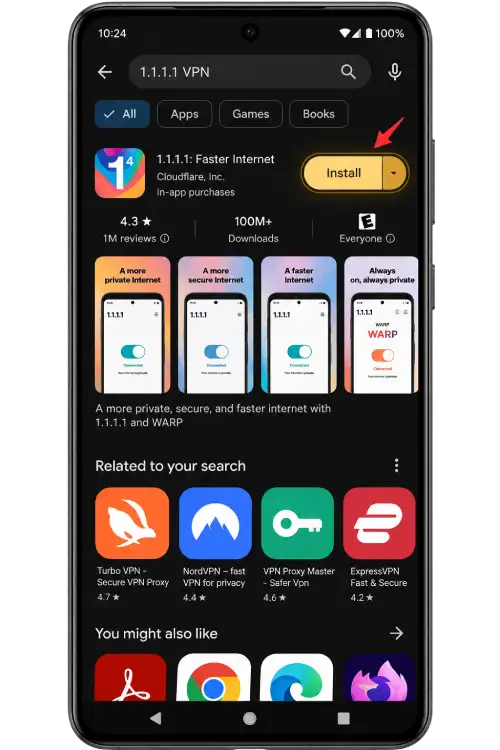
Find the 1.1.1.1 listing from Cloudflare and review it.
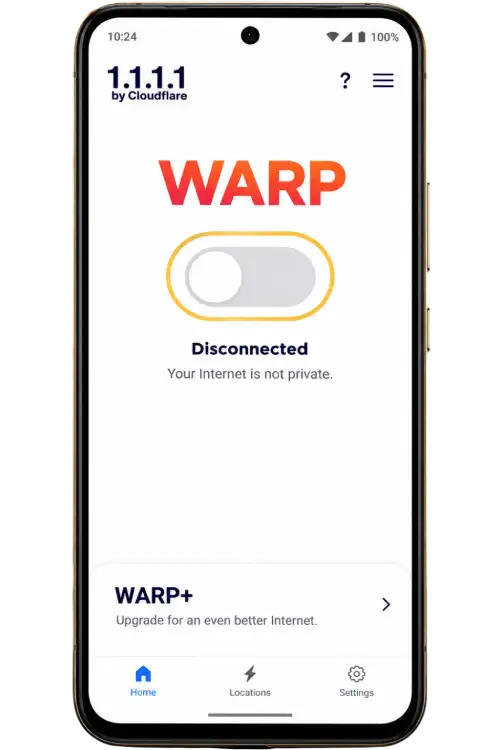
Open the app and review the connection switch.
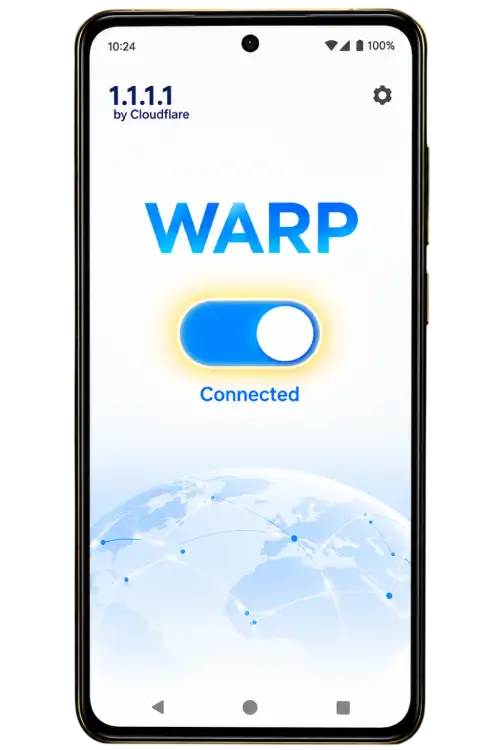
Turn on the connection and check that the app shows Connected.